
Need to update your login credentials? You can change your email or password on e-SwapMeet at any time from the Account details page. Both changes are self-serve. No admin approval is needed. This guide walks through each step.
Table of Contents
How to Change Your Email or Password
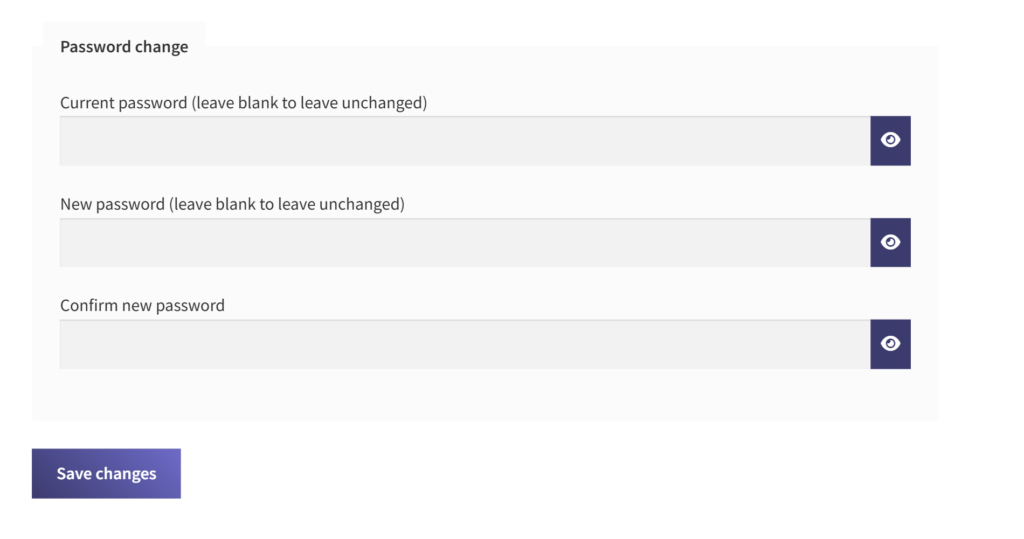
Account credentials are managed from the WooCommerce My Account area, not the Dokan vendor dashboard. Here is how to get there:
- Click My Account in the site navigation (or go directly to
e-swapmeet.com/my-account/). - In the left sidebar, click Account details.
You will see a form with your name, display name, email address, and a password section at the bottom.
How to Change Your Email Address
Your email address is the one you use to log in and receive order notifications. To update it:
- Go to My Account then Account details.
- Find the Email address field.
- Clear the current email and type your new address.
- Scroll down and click Save changes.
The change is immediate. No confirmation email is required. You will see a green notice: Account details changed successfully. Your new email address is active right away.
If the email address you enter is already registered to another account, you will see an error: This email address is already registered. Choose a different address.
After the change, use your new email address the next time you log in. You do not need to log out and back in for the change to take effect. While you are in your settings, you can also update your store profile to keep your storefront current.
How to Change Your Password
To update your password, you need to know your current password. If you have forgotten it, see the section below on password resets instead.
- Go to My Account then Account details.
- Scroll down to the Password change section.
- In the Current password (leave blank to leave unchanged) field, enter your current password.
- In the New password (leave blank to leave unchanged) field, enter your new password.
- In the Confirm new password field, type the new password again.
- Click Save changes.
If the fields are valid and the current password is correct, you will see the green confirmation notice: Account details changed successfully. Your new password is active immediately. You do not need to log out and back in.
You can change your email and password in the same form submission. Fill in both the email field and the password section, then click Save changes once.
Common Errors and What They Mean
| Error message | What to do |
|---|---|
| Please enter your current password. | The New password field has content but the Current password field is blank. Enter your current password. |
| Your current password is incorrect. | The password you entered does not match. Try again or reset your password below. |
| New passwords do not match. | The New password and Confirm new password fields do not match. Retype them. |
| This email address is already registered. | Another account uses that email. Use a different address. |
| Please provide a valid email address. | The address entered is not a valid email format. Check for typos. |
How to Reset a Forgotten Password
If you need to change your email or password but cannot log in because you forgot your current password:
- Go to
e-swapmeet.com/my-account/. - Click Lost your password? below the login form.
- Enter the email address registered to your account.
- Click Reset password. An email with a reset link will be sent to that address.
- Open the email and click the link to create a new password.
Password reset emails are sent from customerservice@e-swapmeet.com. Check your spam folder if the email does not arrive within a few minutes.
Tips for a Strong Password
Your vendor account holds your store, product listings, and earnings history. Use a password that is difficult to guess. A strong password:
- Is at least 12 characters long
- Mixes uppercase letters, lowercase letters, numbers, and symbols
- Is not used on any other site
For guidance on secure password practices, the CISA password guide is a practical reference from the U.S. Cybersecurity and Infrastructure Security Agency.
For help with other account settings, see How to Set Up Your e-SwapMeet Store or the e-SwapMeet Help Center.
Frequently Asked Questions
Do I stay logged in after changing my password?
Yes. Your current session stays active after saving. You do not need to log out and back in.
Does changing my email affect my store?
Your store name and storefront URL do not change when you update your email. Only your login address and order notification email change.
Can I change my email without entering my current password?
Yes. Email changes do not require the current password. Leave the Password change section blank and only update the Email address field, then click Save changes.