
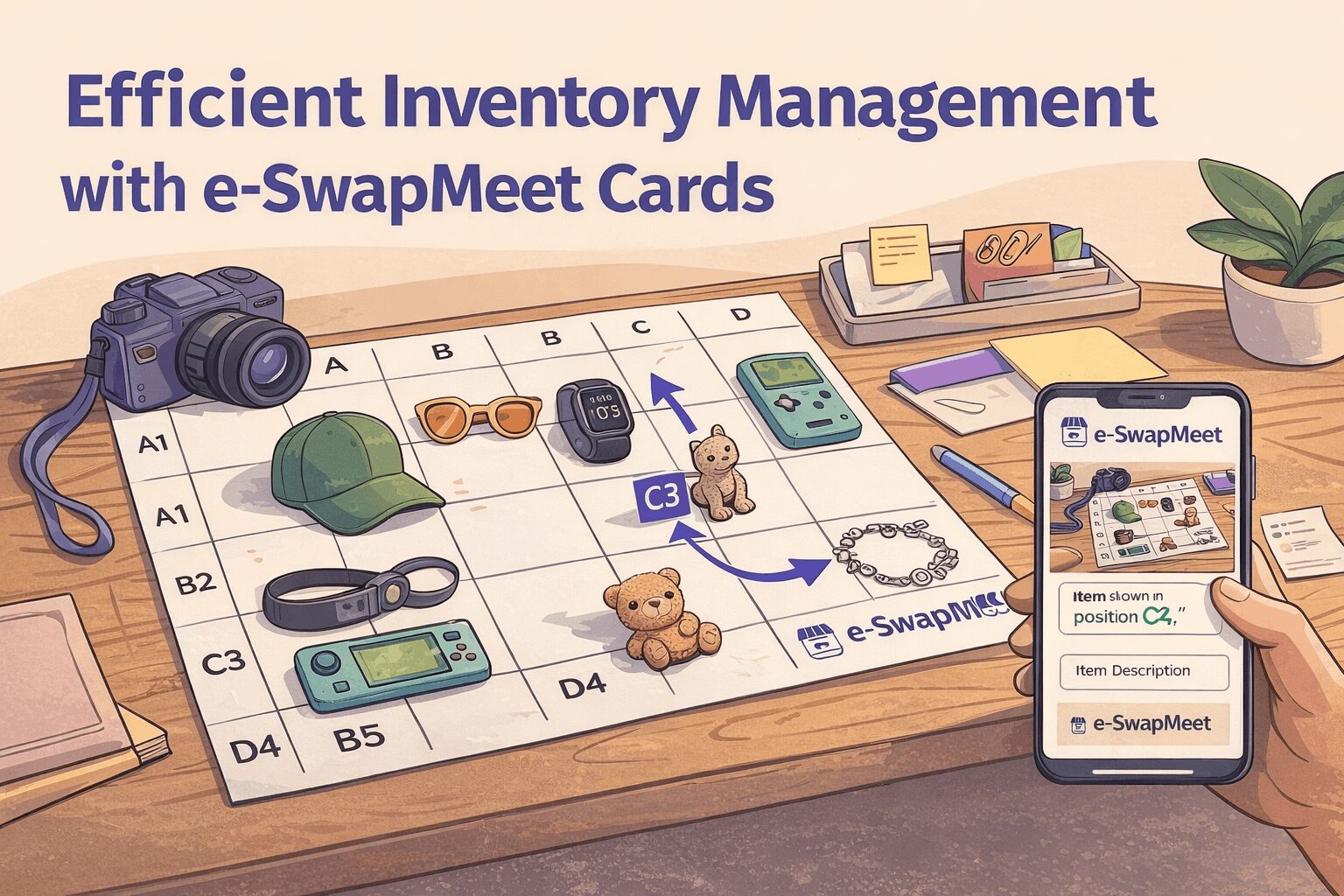
What Are e-SwapMeet Inventory Cards?
e-SwapMeet Inventory Cards are printable grid sheets that help vendors photograph multiple products at once — without needing individual photos for every item.
Place a group of products on the grid — a section of your table, a box of items, or a flat lay of similar products. Take one overhead photo. Then create a separate listing for each item, referencing its grid position (for example: “Item shown in position C4”).
Each sheet prints on standard 8.5×11 paper or card stock. Choose your grid density based on the size of the items you’re photographing.
This system is ideal for:
- Swap meet vendors photographing sections of their table
- Sellers with large or rotating inventory
- Anyone who wants to list multiple products fast without individual photo sessions
How to Use e-SwapMeet Inventory Cards Step by Step
1. Print the Card
- Choose the grid density that fits your inventory (larger items = fewer squares).
- 3×3 grid — best for large items (tools, shoes, bags)
- 4×4 grid — best for medium items (clothing, folded apparel, electronics)
- 5×5 grid — best for small items (accessories, toys, collectibles)
- Use portrait or landscape—whichever best matches your table layout.
e-SwapMeet Inventory Cards are available in portrait (8.5×11) and landscape (11×8.5) — choose whichever matches how you’ve laid out your products.
2. Lay Out Your Products
- Place one product per square.
- Keep labels visible at the top and side (A–F, 1–6).
3. Take One Clear Photo
- Stand directly above the table if possible.
- Ensure labels are readable and lighting is even.
- For best results, use natural lighting or a well-lit indoor space. This guide on product photography basics has helpful tips for shooting flat lays.
4. Create Listings
- Upload the photo once.
- In each product description, reference its grid location (example: “Item shown in position C4.”).
5. Reuse the Same Card
If your inventory changes, you can continue using the same e-SwapMeet Inventory Cards grid labels. Optionally, note identifiers like “Set 1”, “Set 2”, or “Page A” in your product description if needed.
Download Your Inventory Cards
All 6 grid sizes in one PDF — portrait and landscape for 3×3, 4×4, and 5×5. Open it, pick the page that fits your inventory, and print.
Includes all 6 grid sizes: 3×3, 4×4, and 5×5 in both portrait and landscape. Need a larger format for oversized inventory? Contact us at customerservice@e-swapmeet.com
🖨️
Print a Grid Sheet
Choose your grid size — 3×3 for large items, 4×4 for medium, 5×5 for small. Print on standard paper or card stock.
📸
One Photo, Many Products
Place your products in each grid square and take one overhead photo. That single image covers all items in that group.
📋
Reference by Position
Each listing references its grid position — “Item shown in position C4.” Buyers find their item instantly. No individual photos needed.
Best Practices
Get the cleanest results from your e-SwapMeet Inventory Cards by following these quick guidelines:
- Do not overlap products across squares
- Avoid glare or heavy shadows
- Group similar items together (shirts, tools, accessories)
- Update photos when inventory changes significantly
- Match grid density to product size. If items look cramped or overlap the grid lines, step down to a lower density. A 3×3 grid gives each product roughly 3 inches of space per square — ideal for shoes, handbags, or boxed items. A 5×5 grid works best for small flat items like jewelry, keychains, or phone cases. When in doubt, start with 4×4 — it handles the widest range of everyday swap meet inventory without sacrificing clarity in the photo.
Why Vendors Use Inventory Cards
- List 20+ products in the time it takes to photograph one
- One photo session covers an entire group of items
- No photography studio or special equipment needed
- Update listings in minutes when your inventory changes
- Works with any standard printer and regular or card stock paper
Ready to Start Listing?
Open your vendor booth on e-SwapMeet and start using e-SwapMeet Inventory Cards today. Getting set up takes about 5 minutes.