
Welcome to e-SwapMeet. This guide walks you through setting up your e-SwapMeet store step by step, so you can start listing products and reaching shoppers right away.
Table of Contents
Step 1: Log In and Open Your Vendor Dashboard
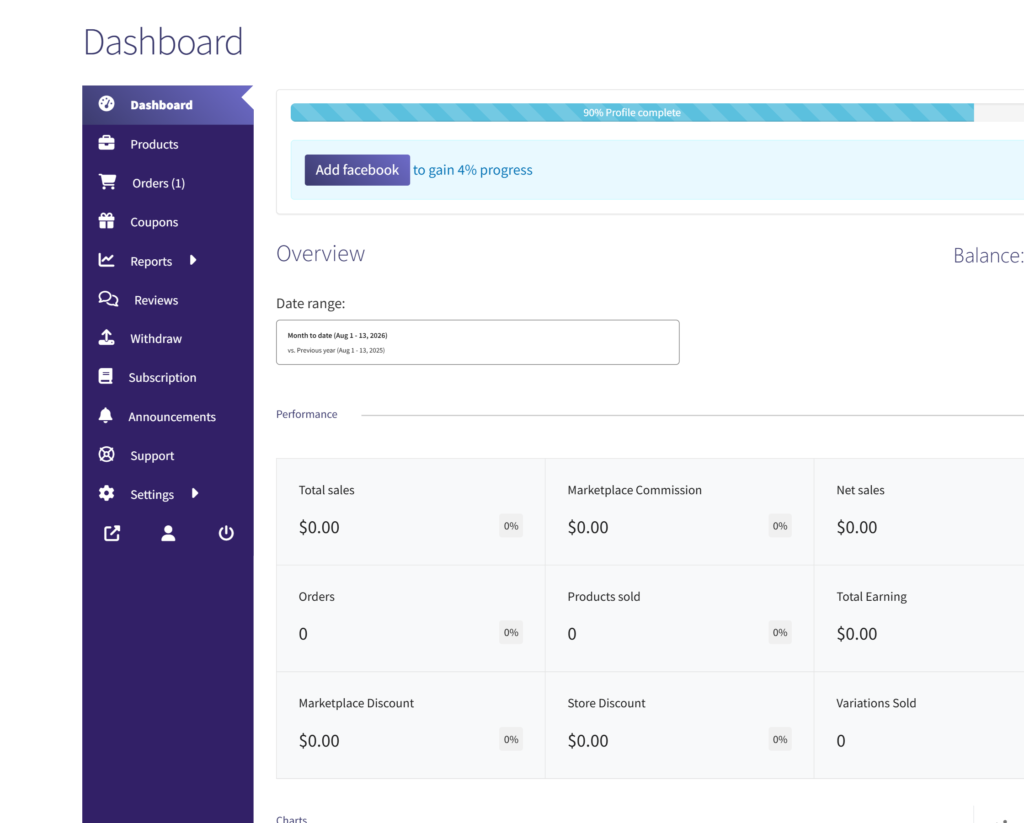
After your account is approved, log in at My Account. You will see a link to your Vendor Dashboard in the navigation. This is your control center for managing your store, products, and orders.
Step 2: Complete Your Store Profile
Go to Dashboard > Settings > Store to fill in your store details:
- Store name — the name that appears on your storefront and in search results
- Store banner — a wide header image for your store page (recommended: 1200 x 300 px)
- Store logo — your profile icon or brand mark
- Store bio — a short description of what you sell and who you are
- Location — city and state, helps local shoppers find you
A complete profile builds trust and helps customers decide to buy from you. Stores with a banner, logo, and bio consistently perform better.
Step 3: Add Your First Product
Go to Dashboard > Products > Add New Product. Fill in:
- A clear product title
- A description that tells customers what they are getting
- A price
- At least one photo
When you are done, click Save Product. Your product will be submitted for admin review. Once approved, it goes live on your store page and in search results.
Step 4: Set Up Shipping
Shipping is automatically configured for your store when you register. If you want to adjust your shipping options, go to Dashboard > Settings > Shipping. You can also use the store-as-brochure model if you prefer local pickup only.
See the shipping setup guide for full details.
Your e-SwapMeet Store Is Ready
Once your profile is complete and your first product is live, your e-SwapMeet store is open for business. Visit the Sell on e-SwapMeet page for more about how the platform works, or browse the rest of the Help Center for guides on products, payments, and more.