
Every product on e-SwapMeet needs a category before shoppers can find it. Product categories decide where your item shows up when someone browses the site, they shape the breadcrumb trail on your product page, and they help your listing surface alongside the right kind of items. This guide walks through how to set a product category on e-SwapMeet, what happens if you skip it, and what to do if the category you need doesn’t exist yet.
Where the Product Categories Field Lives
When you add or edit a product from your vendor dashboard, look for the field simply labeled Category. Tapping it opens a picker where you choose from e-SwapMeet’s full category tree, organized by department and narrowed down into more specific subcategories underneath. Pick the most specific option that actually fits your item; a broad top-level department alone is rarely the best fit if a narrower option exists underneath it.
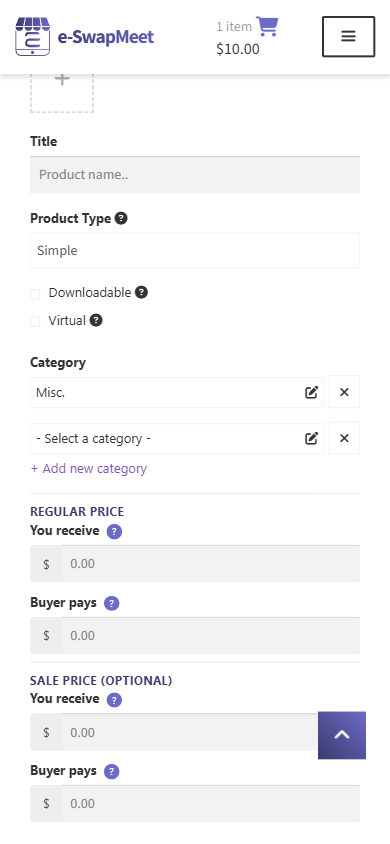
Once you’ve chosen a category, the field shows the full path you selected, so you can confirm at a glance that you landed in the right spot before saving.
Setting or Changing a Product Category
- Go to Products in your vendor dashboard and open the product you want to edit (or start a new one).
- Find the Category field and tap it to open the category picker.
- Browse or search for the department that fits your item, then drill down into the most specific subcategory available.
- Confirm your selection and save the product.
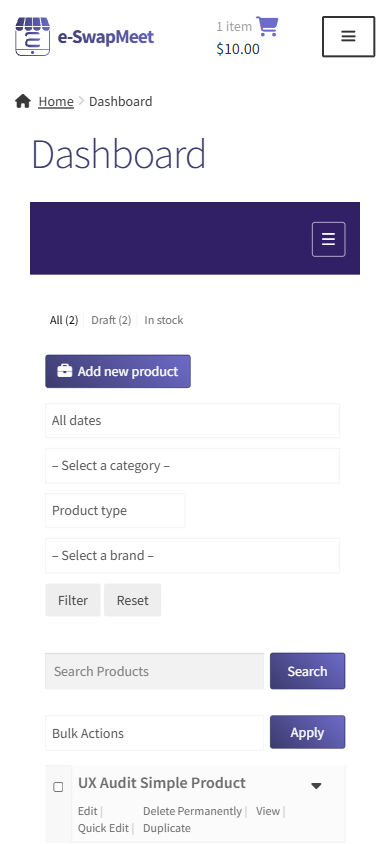
You can change a product’s category at any time after it’s published. If you originally listed something under a broad department and later notice a more specific subcategory that fits better, updating it takes the same steps.
Why This Actually Matters for Your Store
Setting the right product categories isn’t just bookkeeping. Three things depend directly on it:
- Category browsing. Shoppers who browse by department instead of searching will only ever find your product if it’s filed correctly.
- Your product’s breadcrumb trail. The path shown at the top of your product page (for example, Home / Electronics / Tech Accessories / USB Chargers) is generated directly from the category you assigned, all the way up the category tree. A miscategorized product shows a breadcrumb trail that doesn’t match what it actually is, which looks off to a shopper who’s paying attention.
- Related Products suggestions. The “Related Products” section shown on product pages pulls first from other items in the same category, then widens to the parent category if there aren’t enough close matches. A product filed in the wrong category surfaces the wrong related items, and other products in its real category miss out on being suggested through it.

Your product categories assignment is not the only thing that affects how easily your product is found in search results on e-SwapMeet — search relevance is driven mostly by your product title, description, and attributes. But an accurate category is still worth getting right for the browsing and related-products reasons above, and it costs nothing extra to do at listing time.
What Happens If You Don’t Set a Category
e-SwapMeet requires product categories to be set before a new product can be saved. If you try to submit a listing without choosing one, you’ll see an error and the product won’t publish until a category is selected. This exists to keep every live listing browsable — no product ends up invisible to category-based browsing simply because the category step was skipped.
Don’t See a Category That Fits?
e-SwapMeet’s product categories are centrally curated rather than vendor-created. This keeps the category tree clean and prevents near-duplicate categories (like “Dog Toys,” “Pet Toys,” and “Toys for Dogs” all existing separately) from splitting up similar products and making them harder to browse. This mirrors how most retail product categorization systems work: a single, consistent tree that everyone lists into, rather than each seller inventing their own.
If you have a product that doesn’t fit cleanly into any existing category, pick the closest match for now and then reach out to us through the Contact page. Let us know what you’re selling and what category you think is missing. We review these requests directly and will either point you to a category you may have missed or consider adding a new one.
Quick Recap
- Every product needs a category before it can be published — the Category field is required, not optional.
- Pick the most specific subcategory available, not just the broad department.
- Category affects browsing, your product’s breadcrumb trail, and which products show up as Related Products on your listing.
- You can’t create a new category yourself — contact us if nothing fits and we’ll take a look.