
If you sell a product that comes in different sizes, colors, or styles, a variable product lets you list them all under one listing. Customers pick the option they want before adding to cart.
Table of Contents
What Is a Variable Product?
A variable product is one listing with multiple versions, called variations. For example:
- A t-shirt in Small, Medium, and Large
- A phone case available in Black, White, or Blue
- A tool set offered in a 5-piece or 10-piece kit
Instead of creating three separate listings, you create one product with three variations. This keeps your store organized and makes it easier for customers to find what they want.
Step 1: Create a New Product
From your Vendor Dashboard, go to Products > Add New Product.
Fill in the product name, description, and price. Then look for the Product Type field and change it from “Simple Product” to “Variable Product.”
Step 2: Add Attributes
Attributes are the categories of options your product has, like “Size” or “Color.”
- Scroll down to the Attributes tab in the product data section.
- Click Add and enter the attribute name (for example: Size).
- In the Values field, enter each option separated by a vertical bar. For example:
Small | Medium | Large - Check the box that says “Used for variations” so these options become selectable by customers.
- Click Save attributes.
Repeat for each attribute. You can have multiple, such as both Size and Color on the same product.
Step 3: Generate Variations
Once your attributes are saved, scroll down within the same Attribute and Variation panel to the variations area below your saved attributes.
- From the dropdown, select “Create variations from all attributes.”
- Click Go. The system will generate one variation for every combination (for example: Small/Black, Small/White, Medium/Black, and so on).
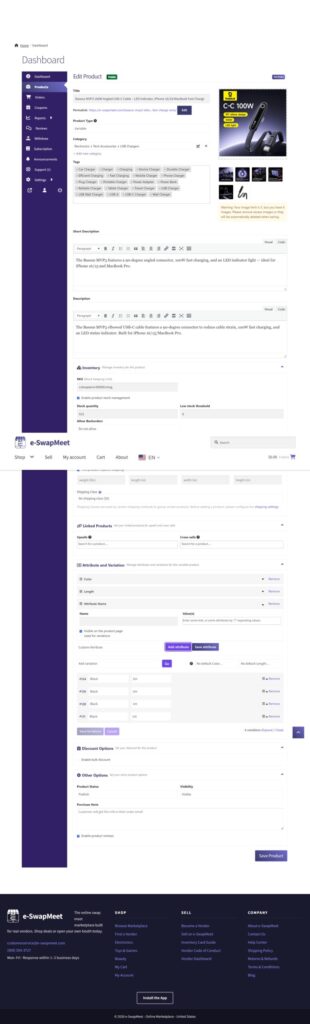
If you have a product with one attribute only, it is simpler. Three sizes creates three variations.
Step 4: Set Price and Stock Per Variation
Expand each variation to set:
- Price (required for each variation, or set a default price at the top level)
- Stock quantity if you want to track inventory per variation
- SKU if you use product codes
You do not have to fill in every field. At minimum, set a price on each variation so customers can add it to their cart.
Step 5: Add Images Per Variation (Optional)
Inside each variation, there is an image icon on the left side. Click it to upload a photo specific to that variation. This is optional but recommended, since customers see the correct item in their cart.
If you skip this step, the main product image shows by default.
Step 6: Save and Publish
Once your variations are set, click Save Changes at the bottom of the Variations tab, then click Publish (or Submit for Review if your account requires admin approval).
Your product will appear in the store with a dropdown or button selector for customers to choose their option before adding to cart. Once your listing is live, learn how to set up shipping so customers can check out smoothly.
Questions about your store setup? Visit the Sell on e-SwapMeet page for more details on how it all works.