
Setting up shipping on e-SwapMeet is simpler than most platforms. This guide covers everything you need to set up shipping and start selling. Here is what you need to know and what has already been done for you.
Table of Contents
Shipping Is Already Set Up for You
When you register as a vendor on e-SwapMeet, a Free Shipping row is automatically added to your store. You do not need to configure anything to get started. Customers can check out immediately without hitting a “no shipping options available” error.
This default setup works as-is if you’re not charging separately for shipping, or if you’re using the store-as-brochure model (more on that below).
How to Set Up Shipping in Your Vendor Dashboard
If you want to review or update your shipping configuration, log in and go to your Vendor Dashboard, then navigate to Settings > Shipping.
The settings page lets you enable shipping for your store and set a default shipping price that applies to your products. You can also set per-country or per-state rates if you ship to specific regions, and add a shipping policy statement that customers will see on your store page.
If your store uses the default Free Shipping setup (auto-configured on registration), you do not need to change anything here. The checkout will work without any extra configuration.
Pro tip: If your product is set to the Shipped shipping class, your price already covers shipping, so it shows as free at checkout. No separate line item to explain, and it looks cleaner to buyers.
If You Want to Charge for Shipping
If you want to charge customers for shipping, go to Dashboard > Settings > Shipping. Dokan may open the newer zone-based shipping screen by default; if so, click the “If you want to use the previous shipping system then Click Here” link near the top to reach the classic settings form, then check the Enable Shipping checkbox. Once enabled, you can set:
- Default Shipping Price — the base shipping cost applied to each product in an order
- Additional Product Price — an extra charge added for each additional item
- Additional Quantity Price — an extra charge per unit quantity
- Country and state rates — flat rates for specific destinations if you ship to select regions
- Shipping Policy — a text field for your shipping terms, visible to customers on your store page
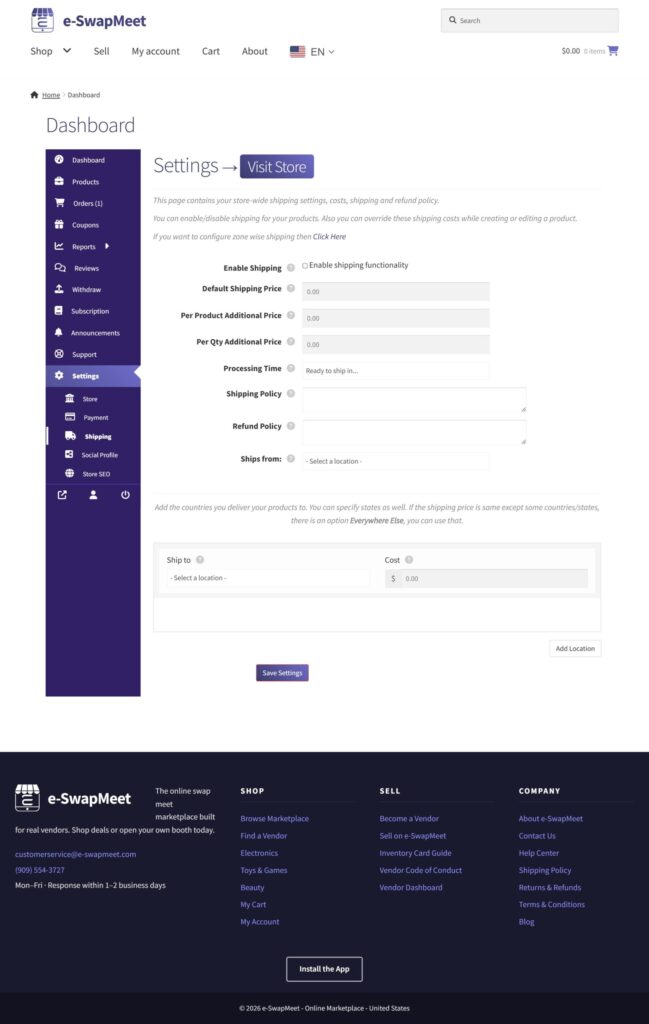
These settings apply store-wide as your defaults. Individual products can override shipping on their own product page if needed. If you are not sure what to charge, start with a simple Default Shipping Price and adjust from there once you have a feel for your average order weight and destination.
Shipping Classes: Local vs. Dropship
e-SwapMeet uses two shipping classes to control which fulfillment options are available at checkout:
| Class | What it means |
|---|---|
| local | Local pickup and cash on delivery (COD) are available. Use this for products you sell in person or arrange local pickup for. |
| dropship | Shipped only, no local pickup, no COD. Use this for products fulfilled by a third-party supplier. |
Your store admin can assign the correct class to your products during onboarding. If you are unsure which applies to your inventory, contact our team.
The Store-as-Brochure Model (No Shipping Required)
Not ready to ship? You do not have to.
Many e-SwapMeet vendors use their store as an online brochure. They post their inventory so customers can browse online, then customers message through the site to arrange local pickup or in-person purchase at the swap meet booth.
This is a great fit for vendors who:
- Sell large or fragile items that are hard to ship
- Already have a booth at a local swap meet and want to extend their reach online
- Want to test e-SwapMeet before committing to a full fulfillment setup
Think of it like Facebook Marketplace with a real storefront. Your products stay visible 24/7, even when your booth is closed.
Ready to list your first product? Head over to the Sell on e-SwapMeet page to get started.