
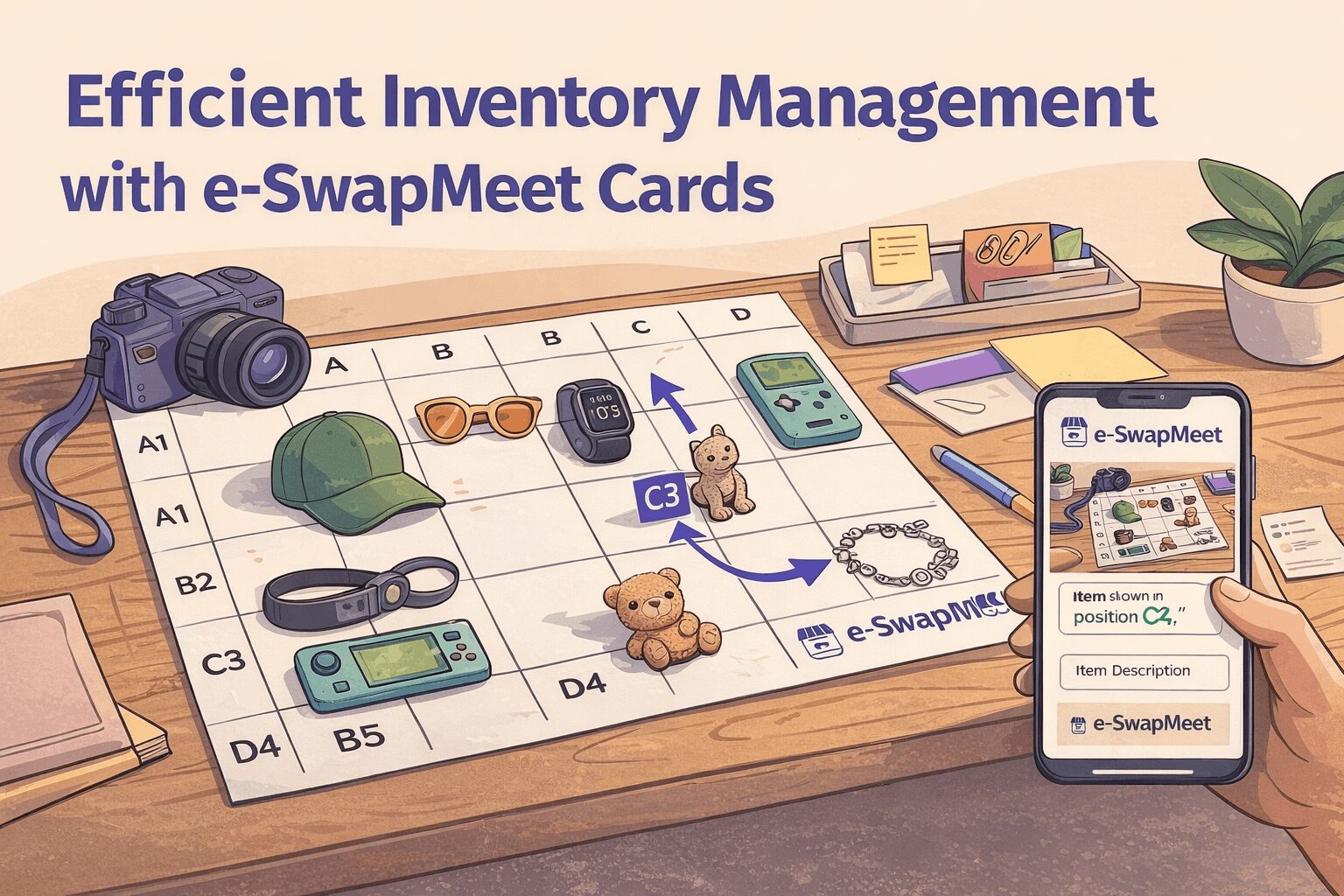
What Are e-SwapMeet Inventory Cards?
Inventory Cards are printable grid sheets that help vendors photograph multiple products at once — without needing individual photos for every item.
Place a group of products on the grid — a section of your table, a box of items, or a flat lay of similar products. Take one overhead photo. Then create a separate listing for each item, referencing its grid position (for example: “Item shown in position C4”).
Each sheet prints on standard 8.5×11 paper or card stock. Choose your grid density based on the size of the items you’re photographing.
This system is ideal for:
- Swap meet vendors photographing sections of their table
- Sellers with large or rotating inventory
- Anyone who wants to list multiple products fast without individual photo sessions
How to Use e-SwapMeet Inventory Cards Step by Step
1. Print the Card
- Choose the grid density that fits your inventory (larger items = fewer squares).
- 3×3 grid — best for large items (tools, shoes, bags)
- 4×4 grid — best for medium items (clothing, folded apparel, electronics)
- 5×5 grid — best for small items (accessories, toys, collectibles)
- Use portrait or landscape—whichever best matches your table layout.
Available in portrait (8.5×11) and landscape (11×8.5) — choose whichever matches how you’ve laid out your products.
2. Lay Out Your Products
- Place one product per square.
- Keep labels visible at the top and side (A–F, 1–6).
3. Take One Clear Photo
- Stand directly above the table if possible.
- Ensure labels are readable and lighting is even.
- For best results, use natural lighting or a well-lit indoor space. This guide on product photography basics has helpful tips for shooting flat lays.
4. Create Listings
- Upload the photo once.
- In each product description, reference its grid location (example: “Item shown in position C4.”).
5. Reuse the Same Card
If your inventory changes, you can continue using the same grid labels. Optionally, note identifiers like “Set 1”, “Set 2”, or “Page A” in your product description if needed.
Download Your Inventory Card
Choose your grid size and print at home on standard paper or card stock. Larger format sheets for oversized inventory are also available.
- 3×3 Grid — Portrait (8.5×11)
- 4×4 Grid — Portrait (8.5×11)
- 5×5 Grid — Portrait (8.5×11)
- 4×4 Grid — Landscape (11×8.5)
- 5×5 Grid — Landscape (11×8.5)
Need a larger format for bigger inventory? Contact us at customer-support@e-swapmeet.com
🖨️
Print a Grid Sheet
Choose your grid size — 3×3 for large items, 4×4 for medium, 5×5 for small. Print on standard paper or card stock.
📸
One Photo, Many Products
Place your products in each grid square and take one overhead photo. That single image covers all items in that group.
📋
Reference by Position
Each listing references its grid position — “Item shown in position C4.” Buyers find their item instantly. No individual photos needed.
Best Practices
- Do not overlap products across squares
- Avoid glare or heavy shadows
- Group similar items together (shirts, tools, accessories)
- Update photos when inventory changes significantly
Why Vendors Use Inventory Cards
- List 20+ products in the time it takes to photograph one
- One photo session covers an entire group of items
- No photography studio or special equipment needed
- Update listings in minutes when your inventory changes
- Works with any standard printer and regular or card stock paper
Ready to Start Listing?
Open your vendor booth on e-SwapMeet and start using Inventory Cards today. Getting set up takes about 5 minutes.